
Docker
These notes are going to be my refrence to a blog post series a friend of mine sent me for the topic: Crash Course As I work through the posts I’ll be including relevant commands here for refrence later.
Initial Setup
My setup will be using a host I created named docker01.chayde.lab (Ubuntu VM with 32g ram, 100g HDD, and 4 vCPU) for any examples I can run on local instances. Ubuntu 22.04 has been installed, initial user setup has been performed and both docker and docker-compose have been installed. I followed my previous post for installing docker and docker-compose
Run Your First Docker Container
To run a container you will use the following command structure:
1
$ docker run <IMAGE> [COMMAND]
The IMAGE is the docker image to run and COMMAND are optional commands to execute with the image. For an example of how this works you can run a bash shell in an Ubuntu 20.04 Docker image
Note
the command below includes the
-itflag so you get an interactive shell where you can type and run other commands.
1
$ docker run -it ubuntu:20.04 bash
You can see that you’re now inside a new container. This is a completely different environment than you were previously working from.
1
2
3
4
5
6
7
8
9
10
11
12
13
root@e84d633423a6:/# cat /etc/os-release
NAME="Ubuntu"
VERSION="20.04.4 LTS (Focal Fossa)"
ID=ubuntu
ID_LIKE=debian
PRETTY_NAME="Ubuntu 20.04.4 LTS"
VERSION_ID="20.04"
HOME_URL="https://www.ubuntu.com/"
SUPPORT_URL="https://help.ubuntu.com/"
BUG_REPORT_URL="https://bugs.launchpad.net/ubuntu/"
PRIVACY_POLICY_URL="https://www.ubuntu.com/legal/terms-and-policies/privacy-policy"
VERSION_CODENAME=focal
UBUNTU_CODENAME=focal
Run a ls -al and you will see a list of files in the container you’re attached to. Docker images are self contained and will always run the same way for any system they run on. To see an example of this we’ll write some text into a file on this container.
Use CTRL+D to exit the container.
1
2
3
4
5
6
7
8
9
10
11
12
13
14
root@e84d633423a6:/# ls -al
total 56
drwxr-xr-x   1 root root 4096 Jul 30 21:43 .
drwxr-xr-x   1 root root 4096 Jul 30 21:43 ..
-rwxr-xr-x   1 root root    0 Jul 30 21:43 .dockerenv
lrwxrwxrwx   1 root root    7 May 31 15:43 bin -> usr/bin
drwxr-xr-x   2 root root 4096 Apr 15  2020 boot
drwxr-xr-x   5 root root  360 Jul 30 21:43 dev
drwxr-xr-x   1 root root 4096 Jul 30 21:43 etc
drwxr-xr-x   2 root root 4096 Apr 15  2020 home
drwxr-xr-x   2 root root 4096 May 31 15:43 media
drwxr-xr-x   2 root root 4096 May 31 15:43 mnt
...
root@e84d633423a6:/# echo "Hello World!" > text.txt
Run the same docker image again, the container should start much faster as you will not have to download the image again. Once connected run ls -al and look for your text.txt file, which you’ll notice is not there. Hit CTRL+D again and then run docker ps -a to list all of the containers on your system including ones that are stopped.
1
2
3
4
5
$ docker ps -a
CONTAINER ID   IMAGE          COMMAND   CREATED              STATUS                     PORTS     NAMES
c85d55bb1f08   ubuntu:20.04   "bash"    About a minute ago   Exited (0) 8 seconds ago             wizardly_solomon
e84d633423a6   ubuntu:20.04   "bash"    11 minutes ago       Exited (0) 5 minutes ago             inspiring_ride
You can start a stopped container by using docker start <ID> command and set the ID from the CONTAINER ID column from the docker ps command. To start the first container we created and then attach an interactive prompt:
1
2
3
4
5
mark@docker01:~$ docker start -ia e84d633423a6
root@e84d633423a6:/# ls
bin  boot  dev  etc  home  lib  lib32  lib64  libx32  media  mnt  opt  proc  root  run  sbin  srv  sys  text.txt  tmp  usr  var
root@e84d633423a6:/# cat text.txt
Hello World!
Each time you run docker run and the exit with CTRL+D you are leaving containers behind which take up disk space. You’ll want to make sure to clean these up with docker rm <CONTAINER_ID> where CONTAINER_ID is the ID from the docker ps command. Alternatively if you want the container to be removed automatically when you exit the container use the --rm flag in your docker run command.
Run a web app using Docker
Run a container that can be used to run a web app and try and access the web app.
1
2
3
4
5
$ docker run training/webapp &
 * Running on http://0.0.0.0:5000/ (Press CTRL+C to quit)
$ docker run training/webapp  * Running on http://0.0.0.0:5000/ (Press CTRL+C to quit)
$ curl localhost:5000
curl: (7) Failed to connect to localhost port 5000 after 0 ms: Connection refused
Containers are isolated not just their file system but also from a networking perspective. The container is listening on port 5000 inside the container but we need to expose that port externally as well. To do so you use the -p switch with the docker command. Hit CTRL+C to shutdown the container and run the following.
1
2
$ docker run -p 5000:5000 training/webapp
 * Running on http://0.0.0.0:5000/ (Press CTRL+C to quit)
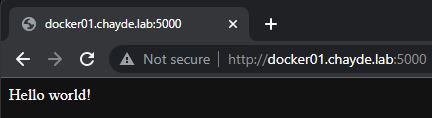
Once it’s running you’ll be able to see the the app return results by opening a web browser to the server or using a curl command.
Create A Docker Image
we’ve used pre-built docker images so far from Docker Hub for ubuntu:20.04 and training/webapp but what about creating your own docker image? For example imagine we had a folder called web-server that contained an index.html file:
1
2
3
4
5
<html>
  <body>
    <h1>Hello World from Custom Docker!</h1>
  </body>
</html>
We could accomplish this by createing something called a dockerfile in the web-server folder with the following contents.
1
2
3
4
5
6
7
FROM python:3

WORKDIR /usr/src/app

COPY index.html .

CMD ["python", "-m", "http.server", "8000"]
A Dockerfile is a text file that contains a series of commands in capital letters describe to Docker how to build a Docker image. For the dockerfile we defined previously it will do the following:
- FROM: This specifies the base image. The preceding code uses the official python image from Docker Hub, which, as you can probably guess, has Python already installed. One convenient thing about Docker is that you can build on top of officially-maintained images that have the dependencies you need already installed.
- WORKDIR: This specifies the working directory for any subsequent commands. If the directory doesn’t already exist, Docker will create it.
- COPY: This copies files from the host OS into the Docker image. The preceding code copies the index.html file into the Docker image
- CMD: This specifies the default command to execute in the image when someone does docker run (if they don’t override the command). I’m using a Python command from the big list of HTTP server one-liners to fire up a simple web-server that will serve the index.html file on port 8000.
To build a Docker image from your Dockerfile, go into the web-server folder, and run the docker build command:
1
$ docker build -t example-server .
Now you can run that image using the docker run command we used earlier. Make sure to include the -p switch to map port 8000 externally to the internal 8000 port
1
$ docker run -p 8000:8000 example-server
Now if you open a web browser or curl to your http://host:8000 you’ll see our web page returned. Going forward if that was a real application you wanted to deploy you could then use the docker push command to push it to a Docker Registry (requires an authorized account).
More House Cleaning Commands
TL;DR: How to Stop All Docker Containers
To stop all Docker containers, simply run the following command in your terminal:
1
docker kill $(docker ps -q)
How It Works
The docker ps command will list all running containers. The -q flag will only list the IDs for those containers. Once we have the list of all container IDs, we can simply run the docker kill command, passing all those IDs, and they’ll all be stopped!
Remove All Docker Containers
If you don’t just want to stop containers and you’d like to go a step further and remove them, simply run the following command:
1
docker rm $(docker ps -a -q)
How It Works
We already know that docker ps -q will list all running container IDs. What is the -a flag? Well that will return all containers, not just the running ones. Therefore, this command will remove all containers including both running and stopped containers.
How To Remove All Docker Images
To remove all Docker images, run this command:
1
docker rmi $(docker images -q)
###How It Works docker images -q will list all image IDs. We pass these IDs to docker rmi (which stands for remove images) and we therefore remove all the images.
Prevent running containers from auto-restarting
Rational: Docker provides restart policies to control whether your containers start automatically when they exit, or when Docker restarts. This is often very useful when Docker is running a key service, this behavior however can prevent you from cleaning up old or unused containers if they’re still running.
Disable ALL auto-restarting (daemon) containers.
1
docker update --restart=no $(docker ps -a -q)
Use the following to disable restart a SINGLE container.
1
docker update --restart=no the-container-you-want-to-disable-restart
Note: docker-compose
restart no is the default restart policy, and it does not restart a container under any circumstance. When always is specified, the container always restarts. The on-failure policy restarts a container if the exit code indicates an on-failure error.
Docker-compose restart policies:
1
2
3
4
restart: "no"
restart: always
restart: on-failure
restart: unless-stopped